

Introduction
Most AI tools today require uploading data to cloud services.
This raises concerns about privacy, data ownership, and security.
QVAC Workbench solves this by allowing you to run AI locally on your device. Your prompts, documents, and personal data stay fully private.
In this tutorial you will learn how to:
Install QVAC Workbench
Upload a personal dataset
Use local AI to analyze your data
Understand the benefits of private AI
What You Will Build
By the end of this tutorial you will be able to upload a personal health dataset and ask AI questions like:
Analyze my health trends
Summarize my medical data
Identify potential health risks
Suggest lifestyle improvements
All of this happens locally on your device.
Why Local AI Matters
Traditional AI workflow
User → Cloud Server → AI Model → Response
Your data travels to external servers.
Local AI workflow with QVAC
User → Local Device → AI Model → Response
Your data never leaves your computer.
Benefits
Full data privacy
No API keys required
Works offline
No data collection by third parties
Screenshot placeholder
[Add diagram screenshot: Local AI architecture]
Step 1 Install QVAC Workbench
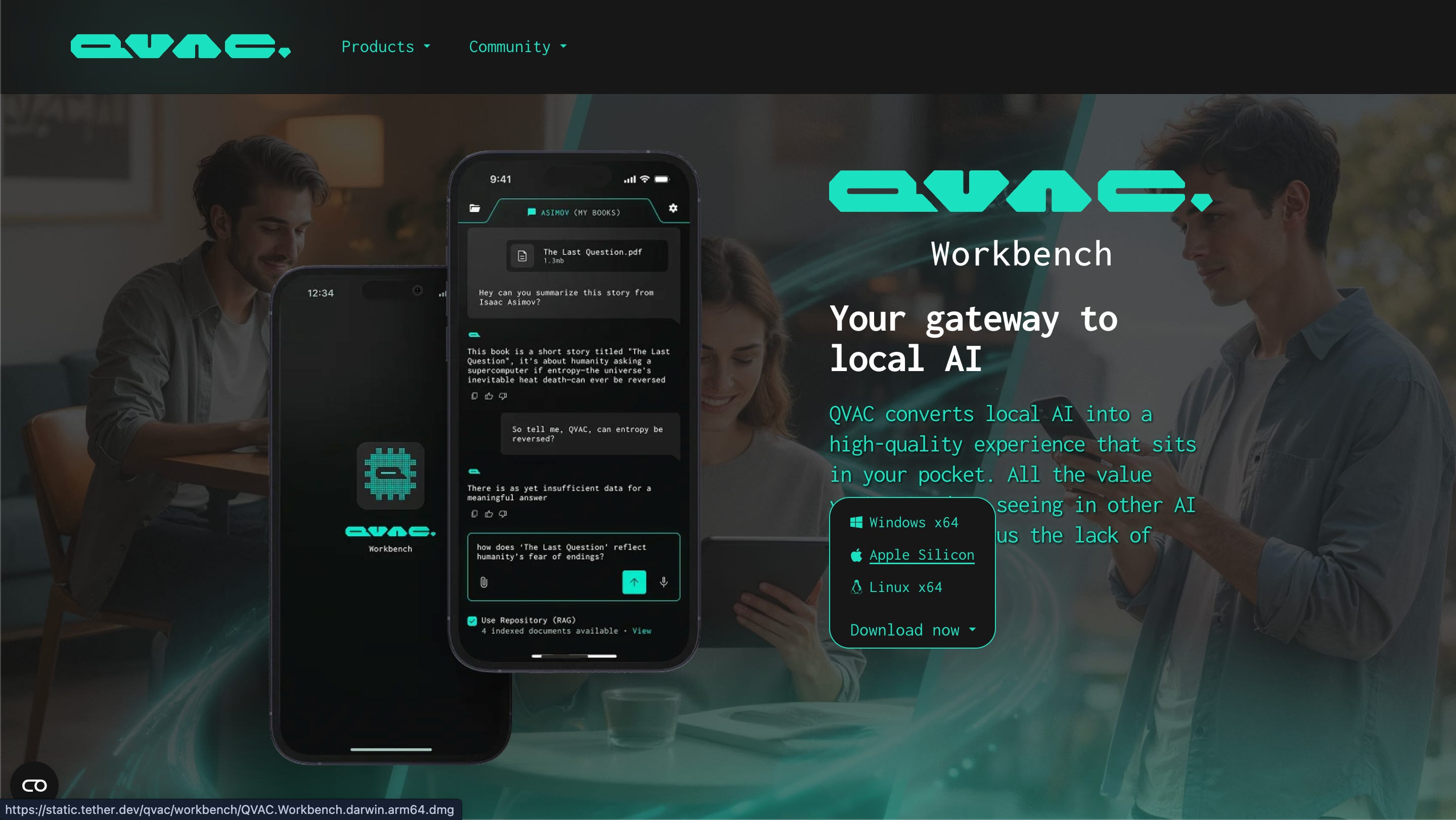
Open the official page
https://qvac.tether.io/products/workbench/
Download the version for your system.
Supported platforms
Windows
macOS
Linux
Install the application and launch it.
Step 2 Open application
After launching QVAC Workbench you need to download a model.
Default Model will be auto downloaded which is Quen3
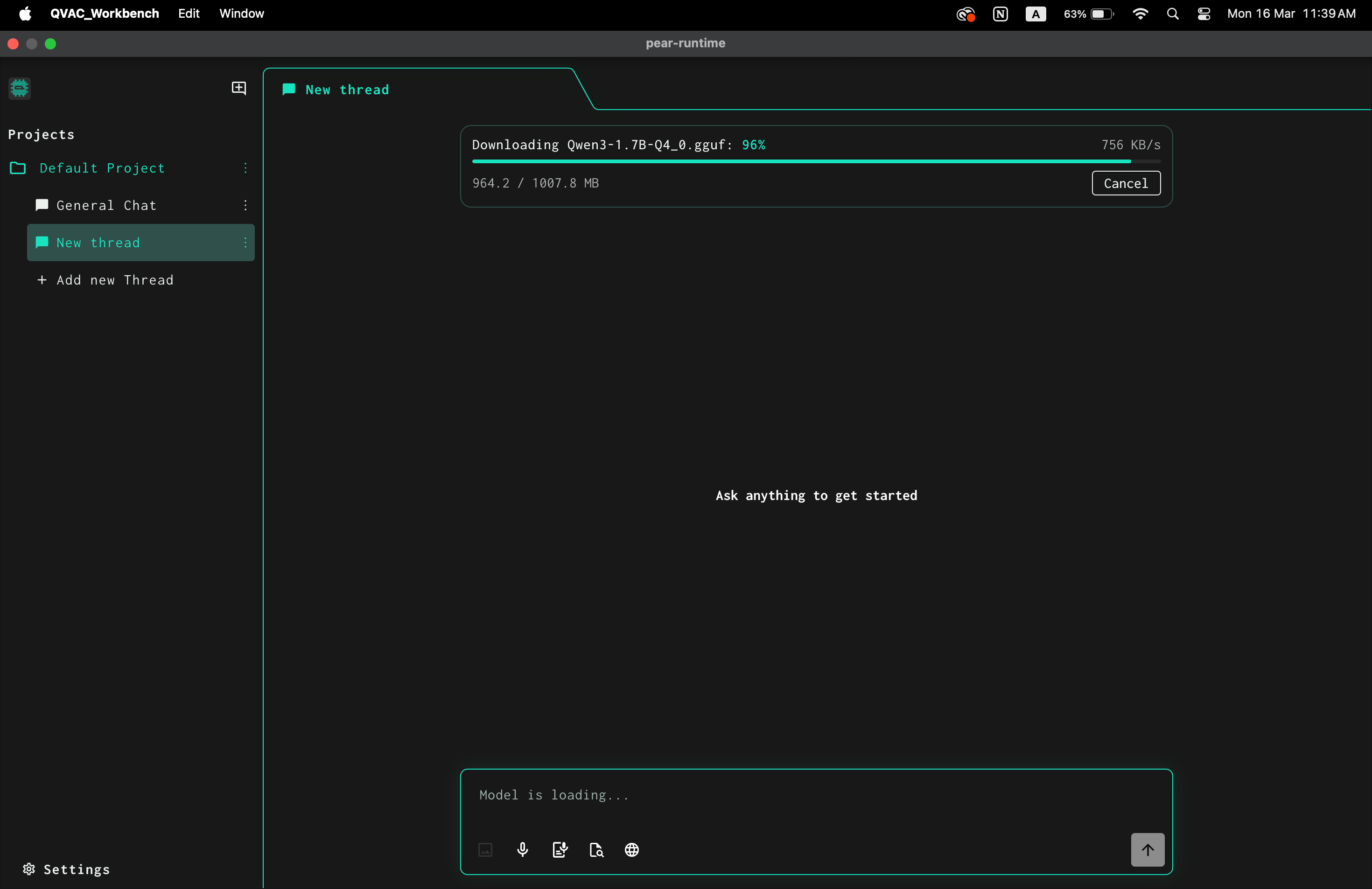
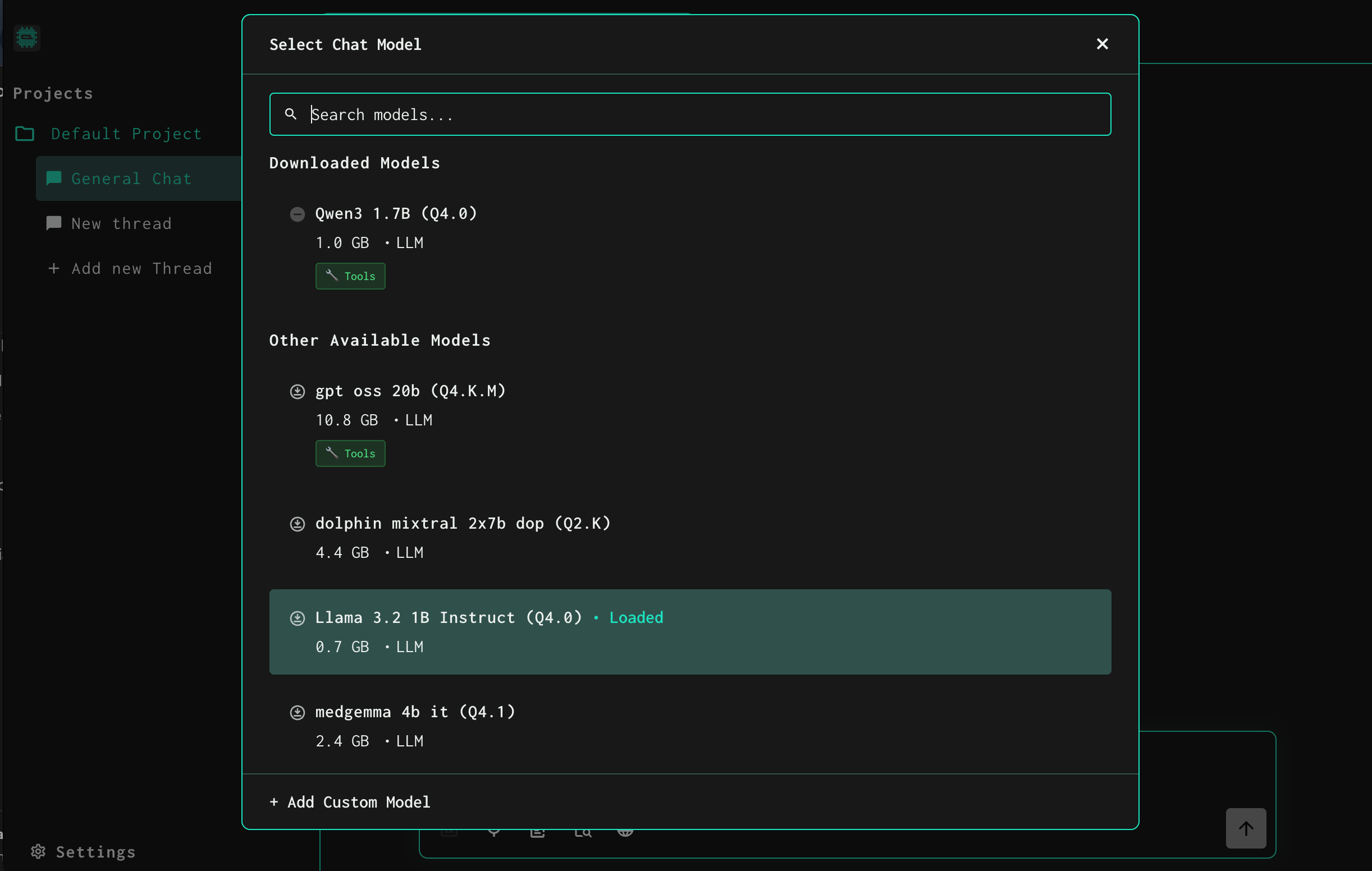
You can Download and choose models as per your needs from the Project setting Also you can configure other chat related settings
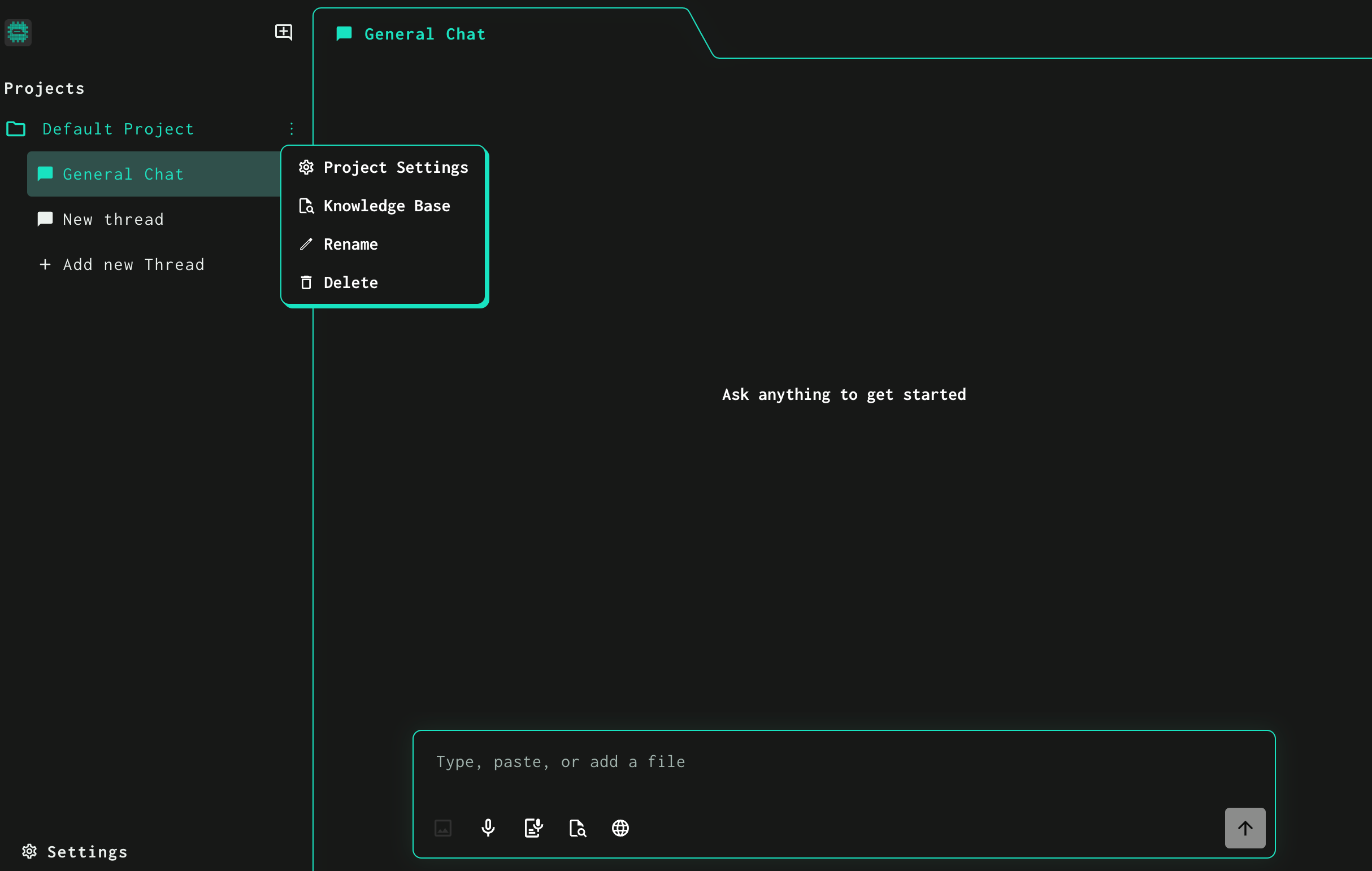
Choose a model and click Download. Chat Modal > Select Modal and Save changes
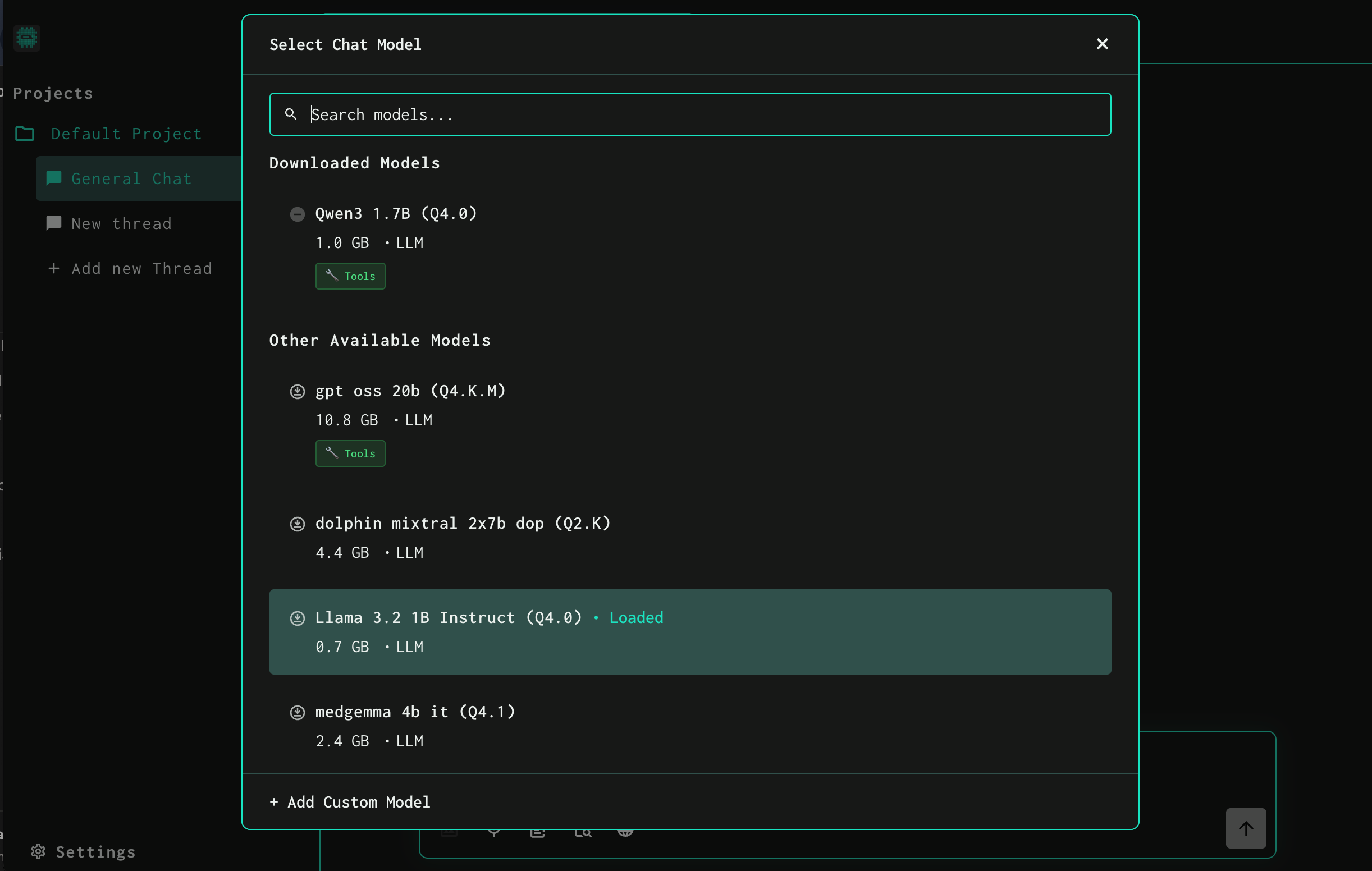
Examples of models
Llama
Qwen
Vision models
Speech models
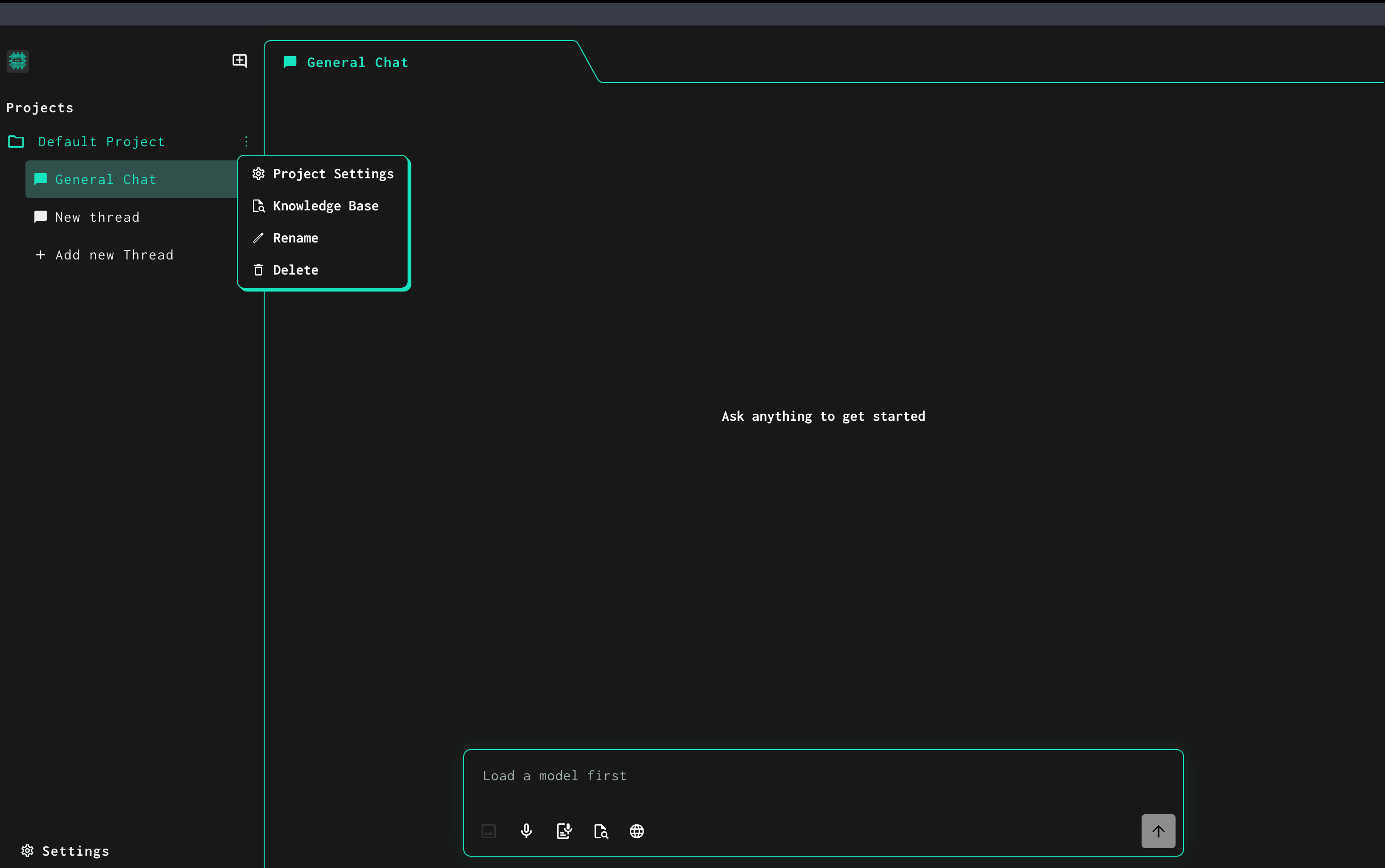
Step 3 Upload a Knowledge Base / Personal Dataset
Open the Knowledge Base by clicking 3 dots in front of the project name
Upload the sample dataset PDF provided in this tutorial.
This document contains structured personal health data including
vital statistics
blood tests
lifestyle information
Step 4 Ask AI Questions
Now enable use knowledge base option and then you can ask the AI questions about the dataset.

Example prompts
Analyze my health trends
Are there any health risks in my data
Suggest improvements for my lifestyle
The AI will read the document and generate answers.
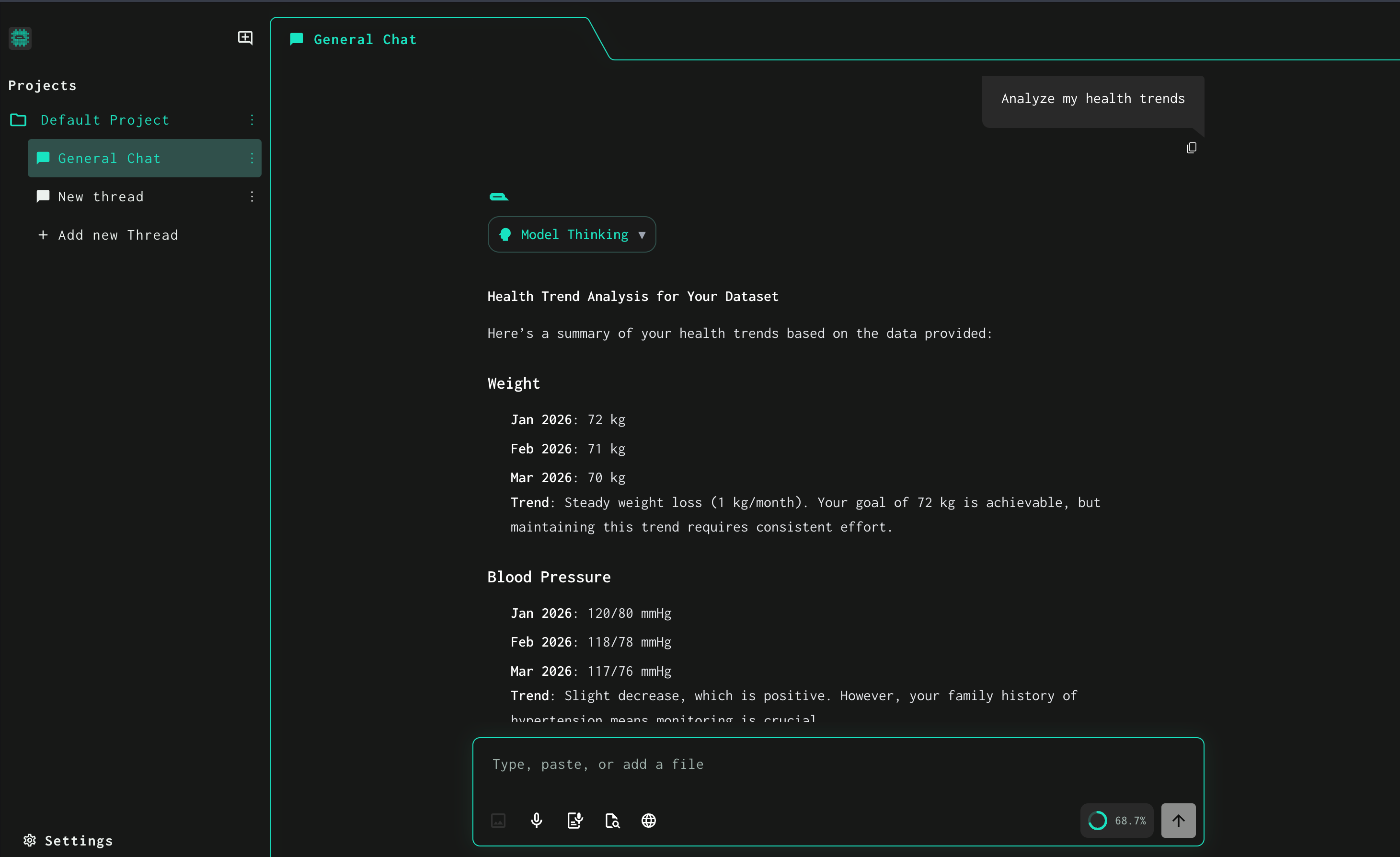
Example AI Insights
AI might produce insights such as
Weight is gradually improving over the last three months.
Vitamin D levels appear slightly below the recommended range.
Blood pressure values are within healthy limits.
Regular yoga practice supports cardiovascular health.
Why This Demo Is Powerful
This tutorial demonstrates a key idea.
AI can analyze sensitive personal data without sending it to the cloud.
This means
personal health records remain private
organizations can analyze confidential data safely
developers can build privacy-first AI tools
Local AI represents a major shift toward data sovereignty.
Conclusion
QVAC Workbench makes it easy to experiment with AI while keeping your
data private.
You can analyze documents, test prompts, and explore AI capabilities
without relying on external servers.
This enables developers, researchers, and individuals to safely use
AI with their own sensitive data.