

Overview
This guide shows how to delegate inference from your iPhone to a more
powerful MacBook. This helps improve performance while keeping your
data local and secure.
Prerequisites
iPhone and MacBook on the same network
Latest version of the app installed on both devices
Device Sync enabled
Step 1: Open Device Sync on iPhone
Open QVAC Workbench app (if not installed get it from app store) Go to Settings
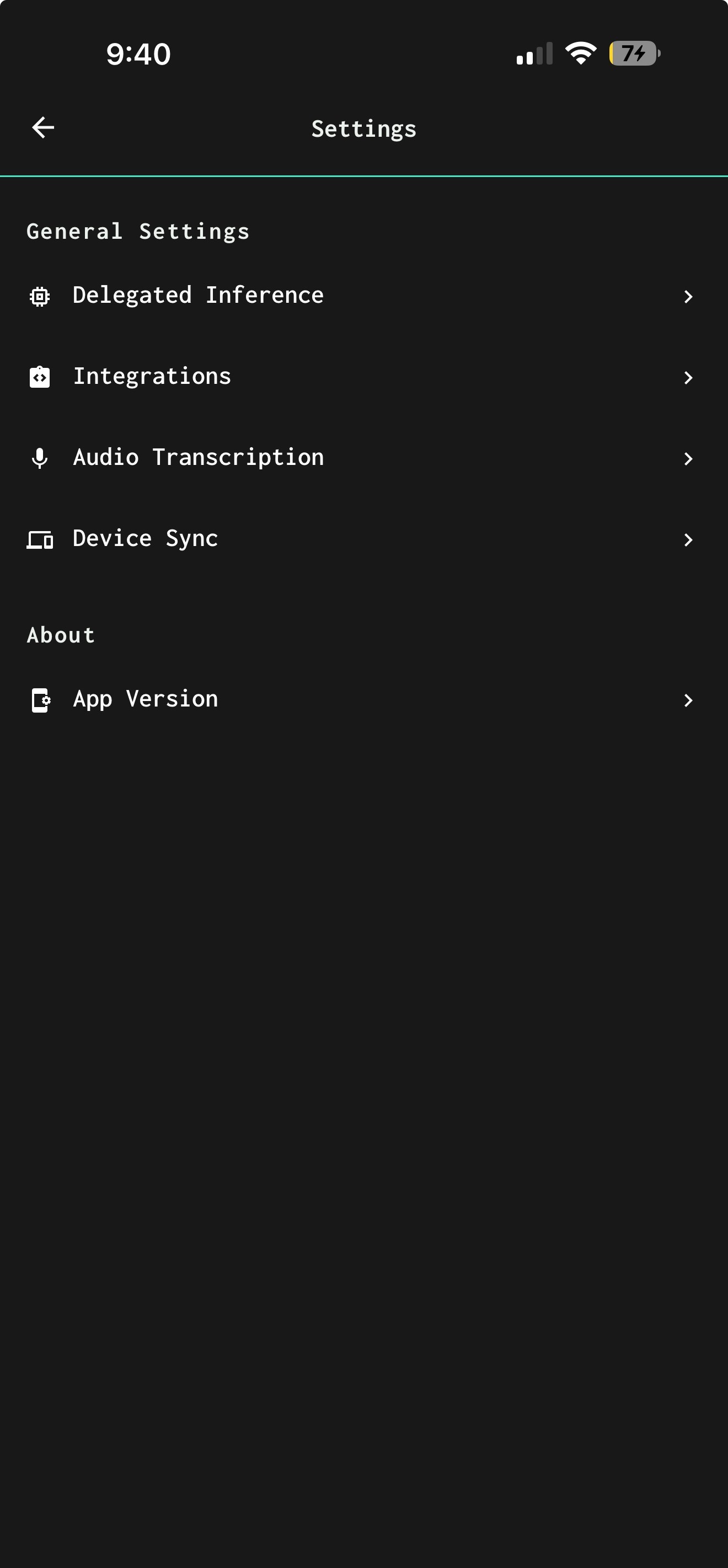
Navigate to Device Sync
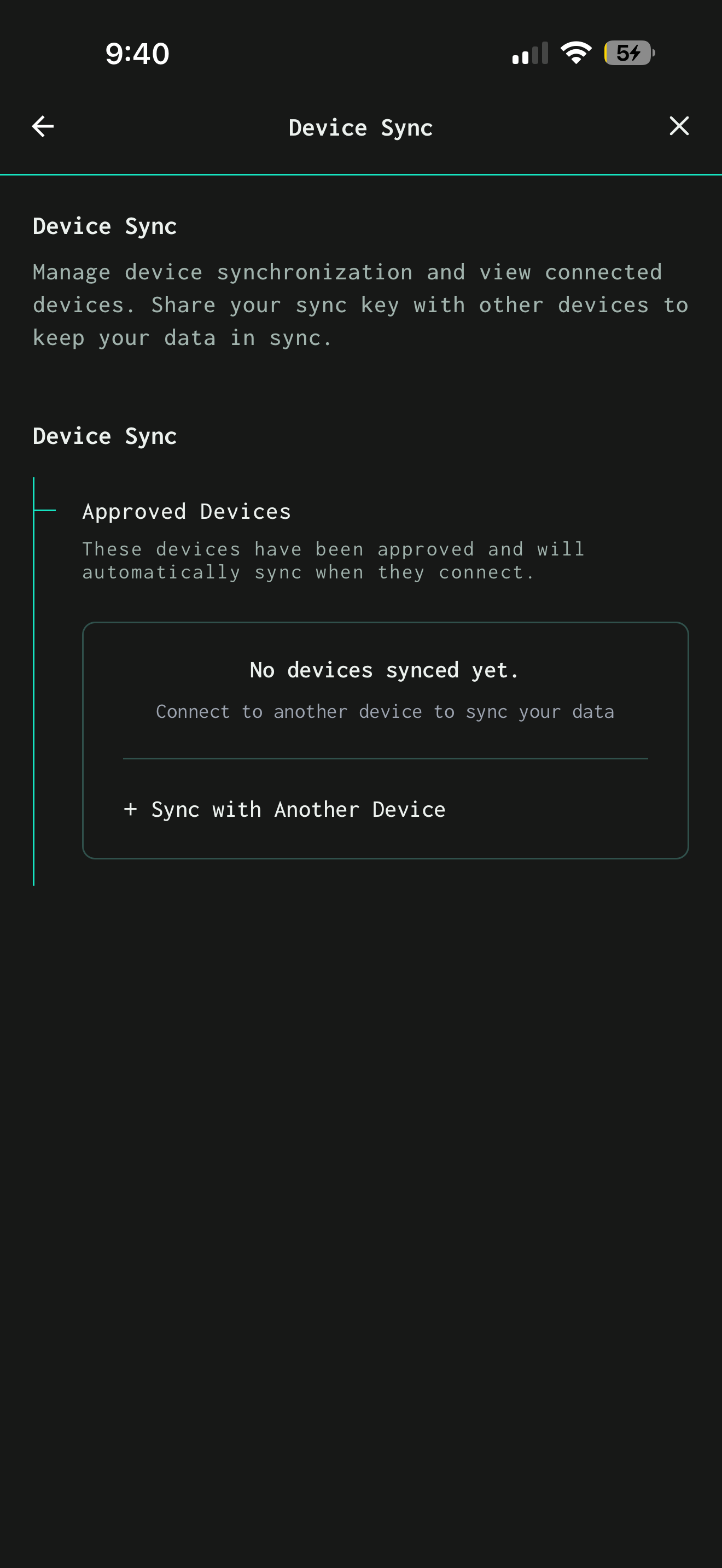
Tap Sync with Another Device
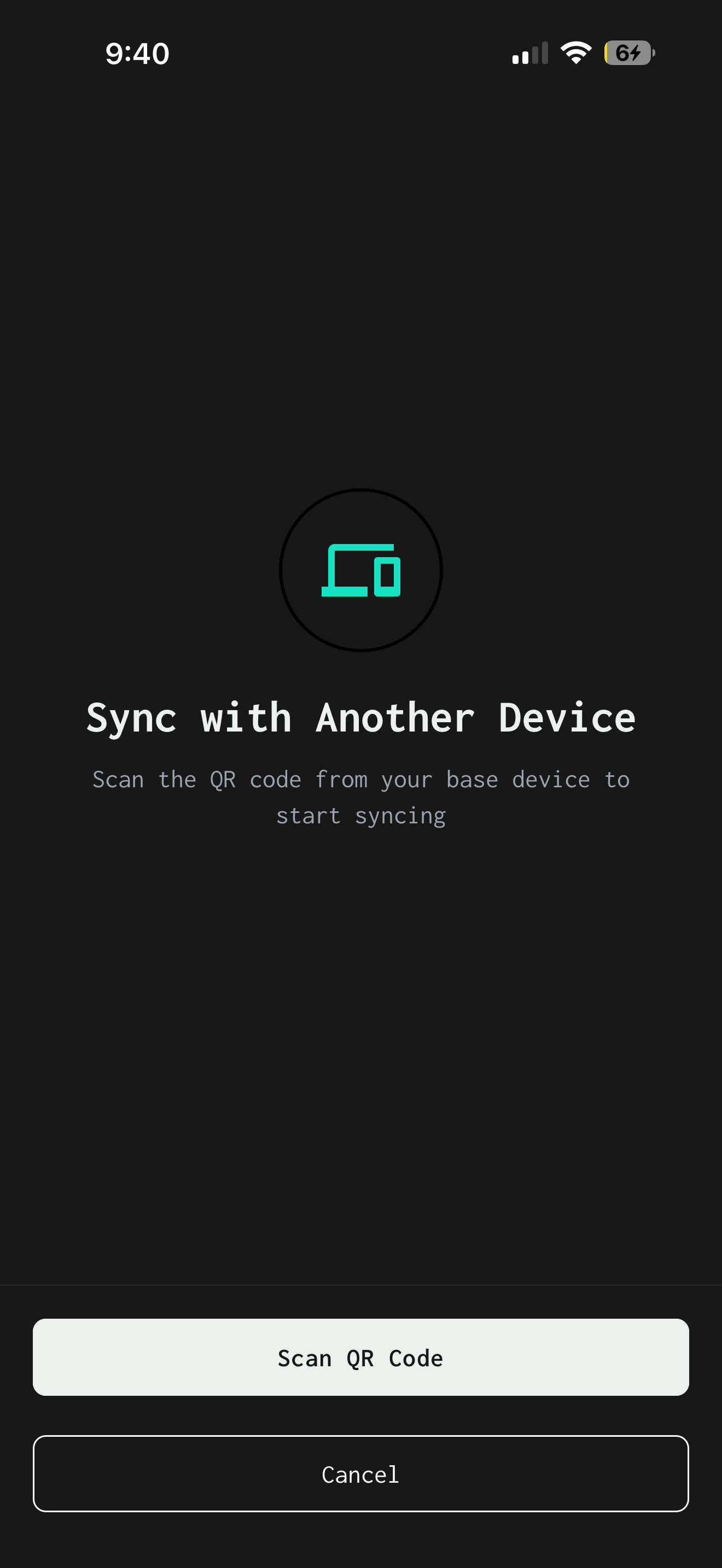
A QR scanner will open
Step 2: Get QR Code from MacBook
Open the app on your MacBook
Go to Settings
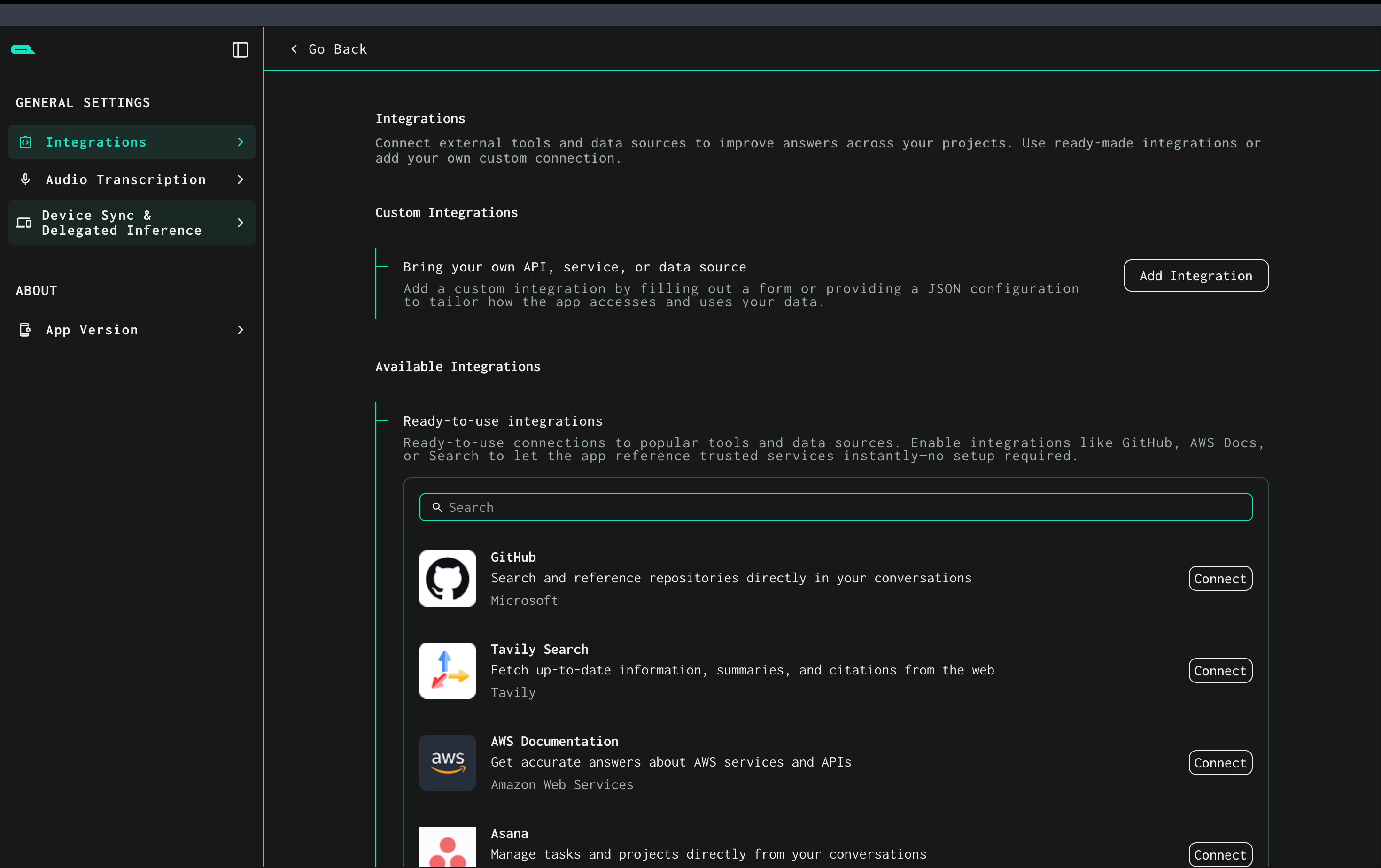
Navigate to Device Sync & Delegated Inference
You will see a QR Code displayed
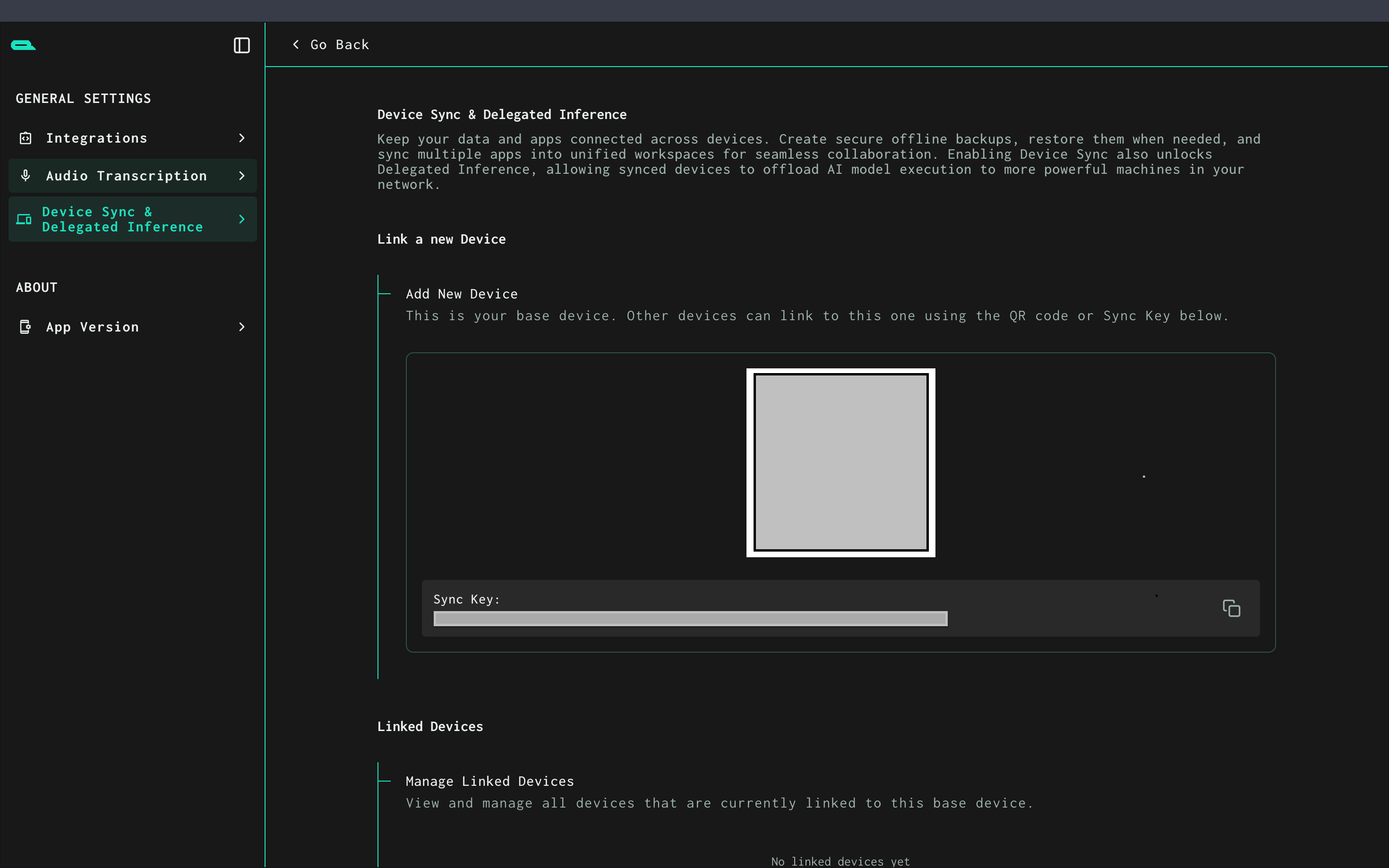
Step 3: Connect Devices
Use your iPhone to scan the QR code from the MacBook
Wait for the approval screen on iPhone
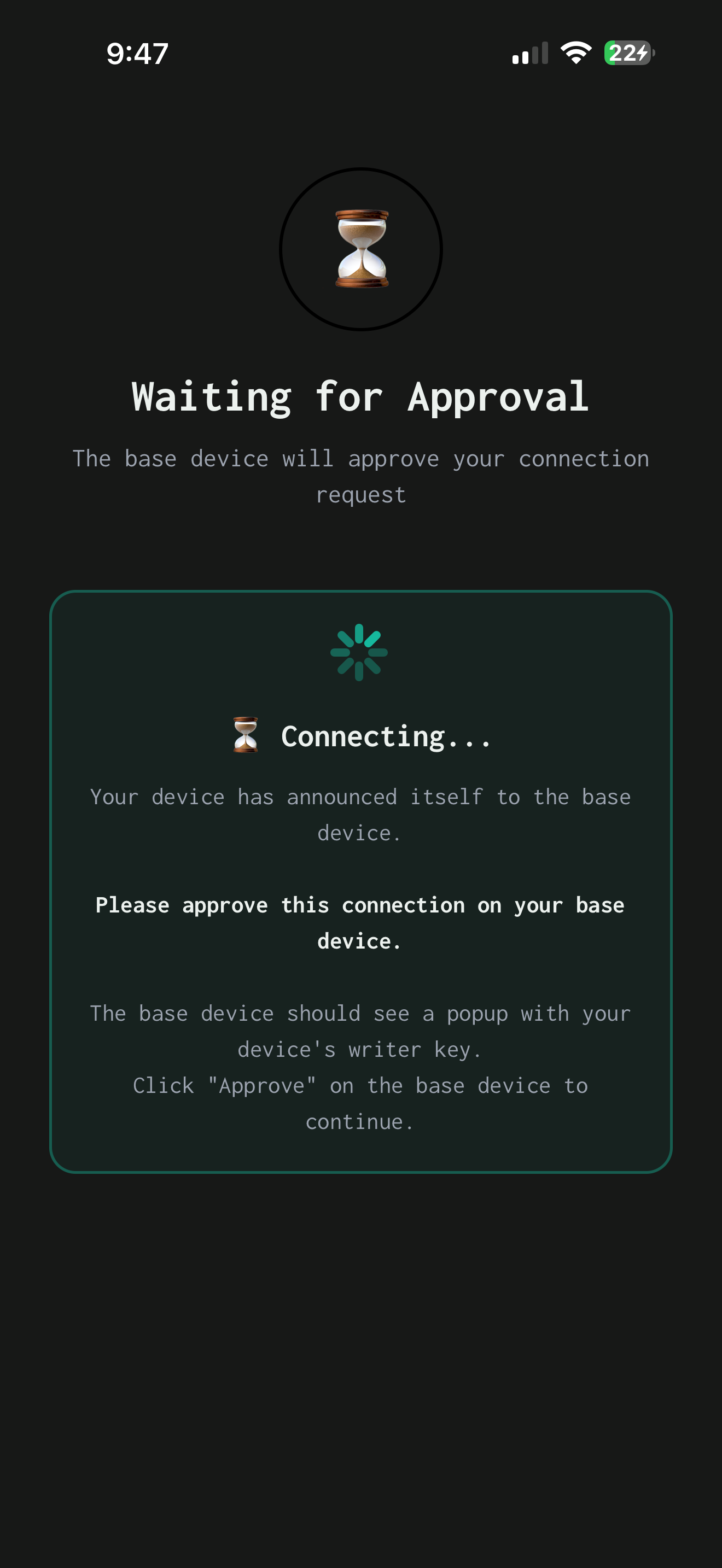
Step 4: Approve Connection
On MacBook → Approve the delegation request
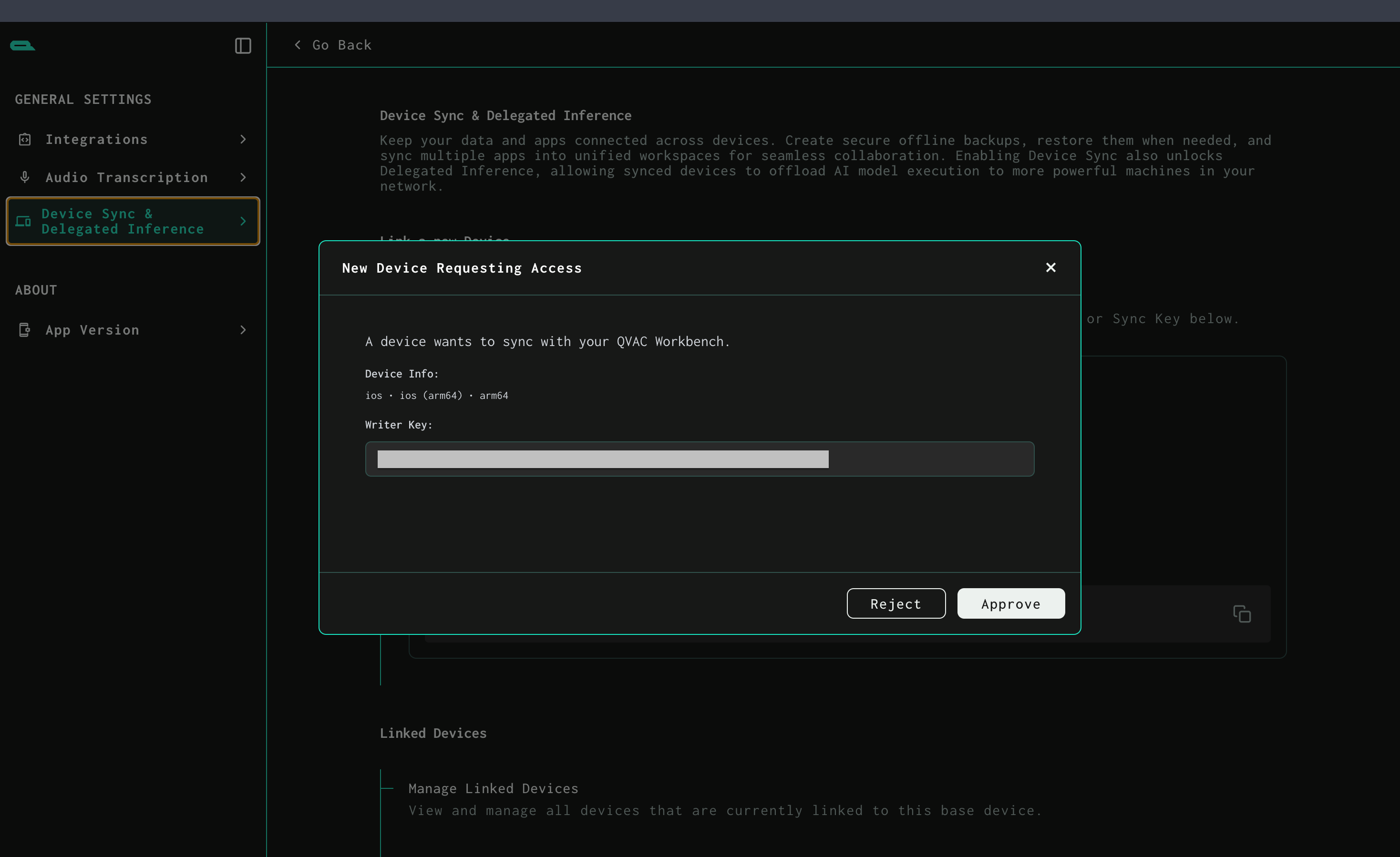
Once approved, the devices will be securely connected
Step 5: Start Delegating Inference
Your iPhone will now offload processing tasks to the MacBook
Heavy AI tasks will run on the MacBook automatically
Result
You have successfully delegated inference from your iPhone to your
MacBook, enabling faster processing while keeping everything local.
Notes
Ensure both devices stay connected to the same network
If connection fails, retry QR scan
You can disconnect anytime from Device Sync settings